Picking an app is the easy part. This is the practical side of switching: which Mint features Canadians actually miss, how to clean up an old Mint CSV export so it imports properly, and how to fill the gap in your history since Mint closed.
Most articles about a Canadian Mint alternative stop at a list of apps. That's useful for about ten minutes. The harder part comes after, when you open your new app and realize it has none of your history, none of the category fixes you made over the years, and none of the little routines that made Mint worth opening. Mint shut down in early 2024, so anything you didn't save then is gone, but a surprising amount can still be rebuilt.
This guide assumes you've chosen a replacement or have it narrowed to two. It covers what former Mint users in Canada tend to miss most, how to rescue and clean an old Mint export, how to download the history Mint never captured, and a 30-day checklist to get the new setup running like the old one did. Sumyfi comes up once, near the end.
The Mint features Canadian users miss most
When people describe what they lost with Mint, it's rarely a big feature. It's small, specific things that only become obvious once they're gone. These are the ones that come up again and again, and they make a good checklist for your new setup.
Intuit pointed Mint users to Credit Karma, and in Canada that's an awkward fit. Credit Karma Canada has its own feature set built around credit scores and credit products, and it doesn't do what Mint did for a monthly budget. It's fine to keep it for your score, but plan on rebuilding the budgeting side somewhere else.
Years of history
being able to see what you spent on groceries in March 2021
Category corrections
every time you told Mint that a Loblaws charge was groceries, not shopping
Budget warnings
the nudge when dining out passed 80% of its limit before the 20th
Trends over time
one chart comparing this year's spending with last year's
Net worth in one number
chequing, TFSA, RRSP, mortgage and car loan rolled together
No cost
the one thing most replacements can't match for automatic sync
What's in an old Mint CSV export, and why it's worth keeping
Mint let you export every transaction as a single CSV file, usually named transactions.csv. If you downloaded one before the shutdown, it's the most valuable thing you have from Mint. Search your Downloads folder, your desktop, cloud storage and your email for that file name. People often exported it during the shutdown notice period and forgot about it.
A Mint export typically has columns for Date, Description, Original Description, Amount, Transaction Type, Category, Account Name, Labels and Notes. The Original Description column is the raw text from your bank. The Description column is Mint's cleaned-up merchant name, often with your own edits applied. Both are useful.
If you never exported, the history inside Mint is gone. Skip to the section on downloading bank history, because some of it still exists at your bank.
How to clean a Mint export for your Canadian Mint alternative
Don't import the raw file straight into a new app. Mint's format has a few quirks that cause messy results, and it takes less than an hour to fix them in Excel or Google Sheets. Work on a copy and keep the original untouched.
- Check the dates. Mint exported dates in US month/day/year format. After importing a test batch, confirm that January 2 didn't turn into February 1. If the app misreads them, reformat the column to year-month-day, which almost every importer reads correctly.
- Fix the signs. Mint listed every amount as a positive number and put debit or credit in the Transaction Type column. Many apps expect spending as negative numbers. A formula like =IF(E2="debit",-D2,D2) in a new column handles it. Check how your new app reads amounts before importing everything.
- Remove double-counted transfers. A $1,200 credit card payment shows up once leaving chequing and once arriving at the card. Filter the Category column for transfers and credit card payments and decide whether you want them at all.
- Collapse the categories. Mint's list was long and US-flavoured, with categories like Auto Insurance, Mobile Phone and Mortgage and Rent. Map them to the 15 to 20 categories you'll actually use going forward.
- Split by account if needed. Some apps import one account at a time. Sort by Account Name and save a separate file for each chequing account and card.
- Delete closed accounts. If you cancelled a card in 2022, import its history only if you want it in long-term trends.
Recovering the history Mint never captured
Even with a good export, there's a hole between the day Mint stopped and the day you connected a new app. Your bank is the only place that history lives now.
RBC, TD, Scotiabank, BMO, CIBC and most other Canadian banks let you download transactions from online banking as a CSV or spreadsheet file. Look for an option called download, export or account activity near your transaction list. How far back you can go varies by bank and account type, so download what's available now rather than later, since older months can drop off.
Do the same for every credit card. If you carry a card from a different issuer than your bank, like an Amex, a Rogers Mastercard or a PC Financial card, that's a separate download from a separate site. Credit unions and online banks such as Tangerine, Simplii and EQ Bank have their own export options, and it's worth checking each one.
Once you've got the files, run the same cleanup as the Mint export: check dates and signs, remove transfers, and map categories. Then import oldest first so your history builds up in order.
Rebuilding your categories for how Canadians actually spend
This is a chance to fix things Mint never handled well for Canadian accounts. A few changes make the next year of data much more useful.
Interac e-Transfers
Make a category for each regular one, like rent, childcare or a share of the family phone plan, so they don't sit as generic transfers
Pre-authorized debits
Hydro, home insurance and property tax instalments belong in fixed costs even when the descriptor is cryptic
Registered accounts
Treat TFSA, RRSP and FHSA contributions as savings so they don't inflate your spending
US-dollar charges
Expect amounts to shift slightly every month from the exchange rate and card foreign transaction fees
Annual renewals
Costco, CAA and Amazon Prime arrive once a year and deserve their own line so they don't wreck one month
Moving your Mint history into Sumyfi
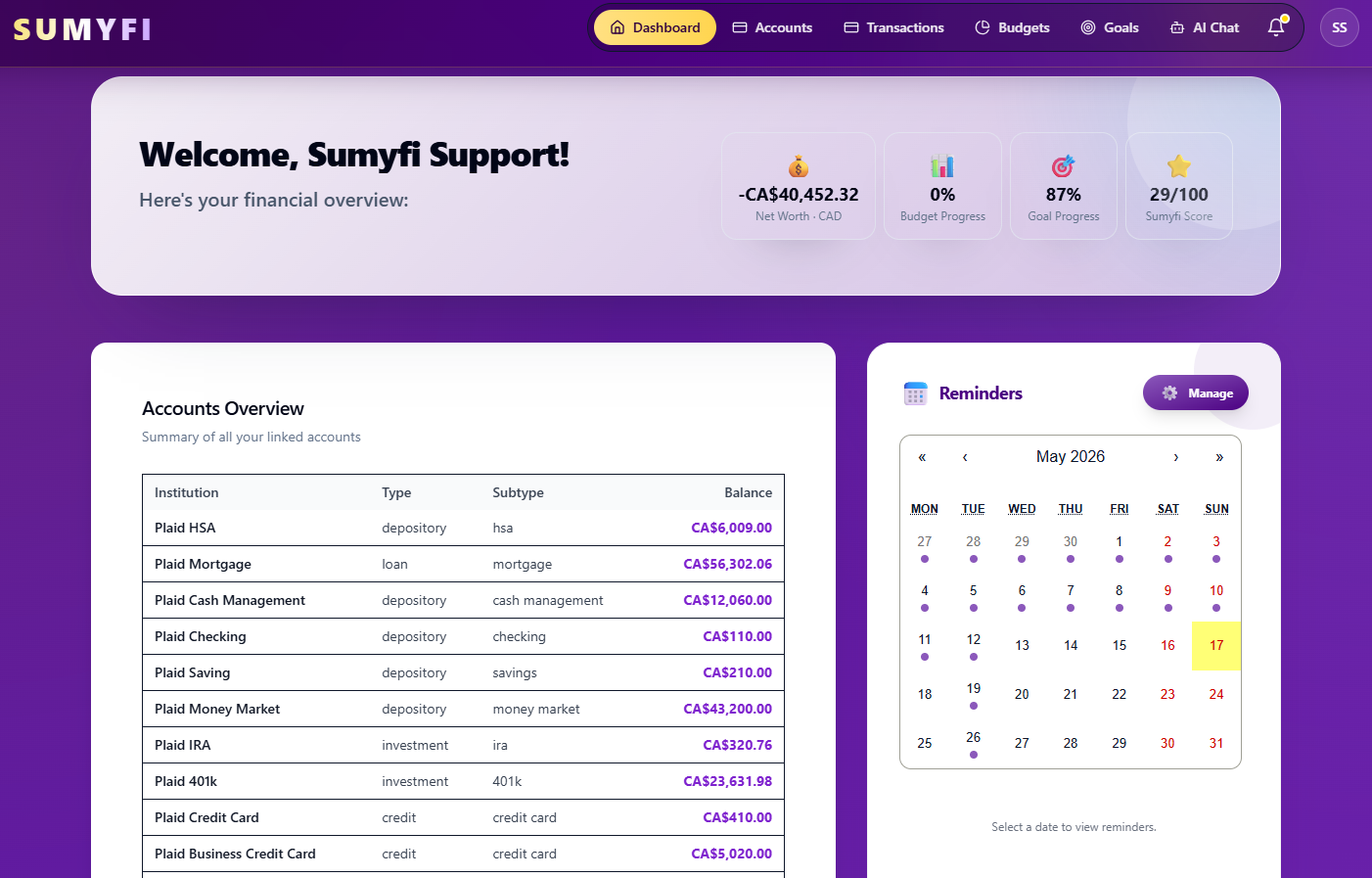
If Sumyfi is the app you've chosen, the import side is covered on the free plan. You can bring in CSV or Excel files, including a cleaned Mint export and your bank downloads. Sumyfi reads the column headers to match fields and shows a preview before anything is saved, so you can catch a date or sign problem early.
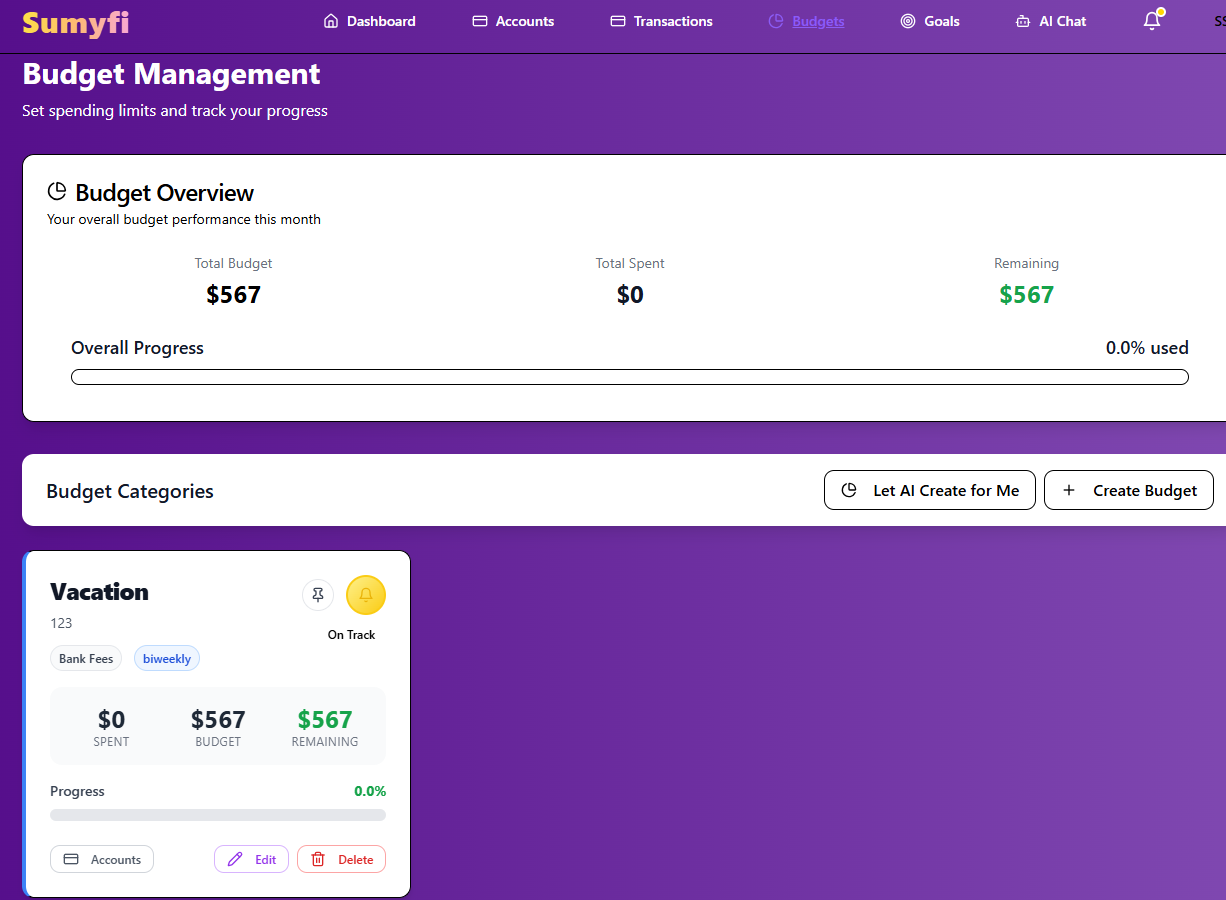
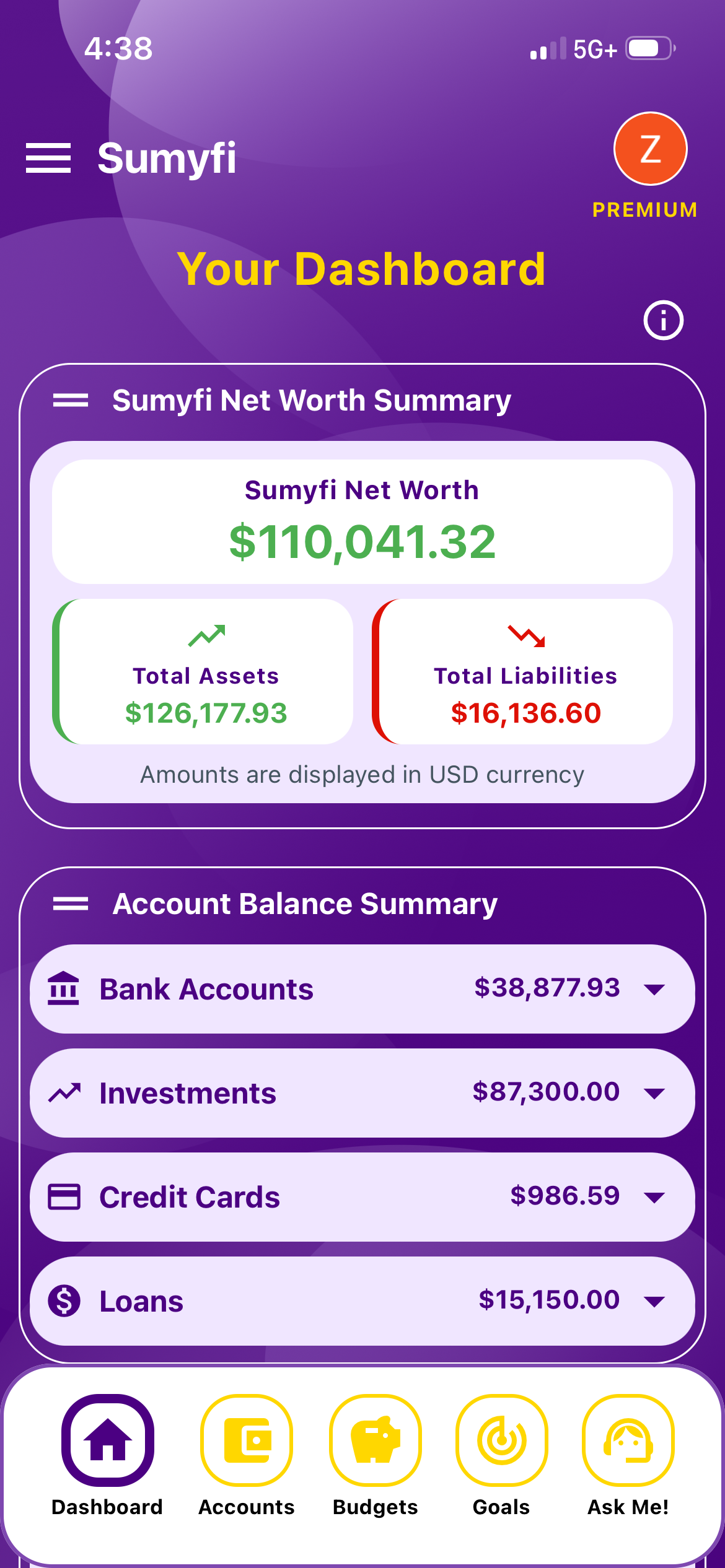
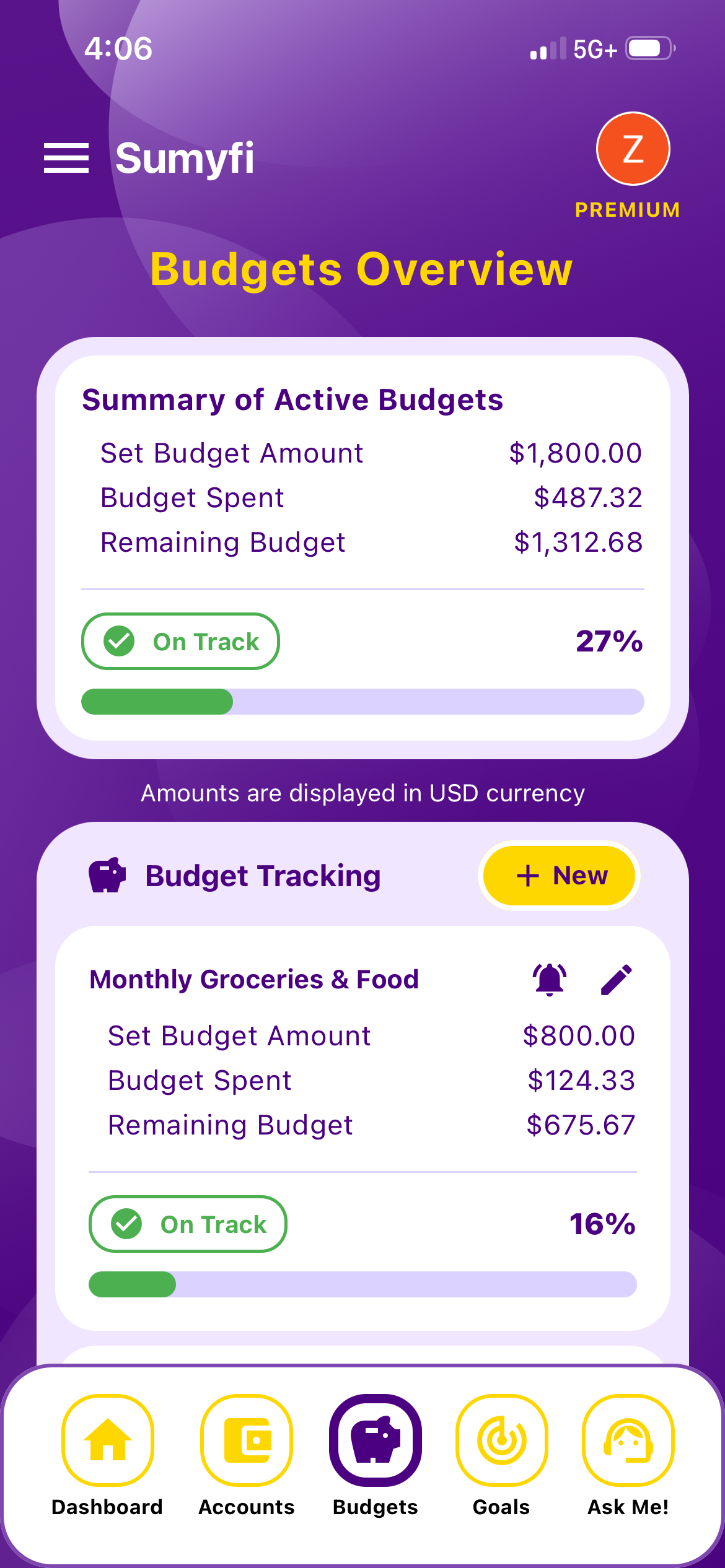
From there you get budgets, goals, net worth and a recurring-charges view on one dashboard, in CAD with USD accounts converted rather than mixed in. The recurring view shows what's due in the next 10 days and a yearly total, and you can add the charges it doesn't detect, like rent sent by e-Transfer.
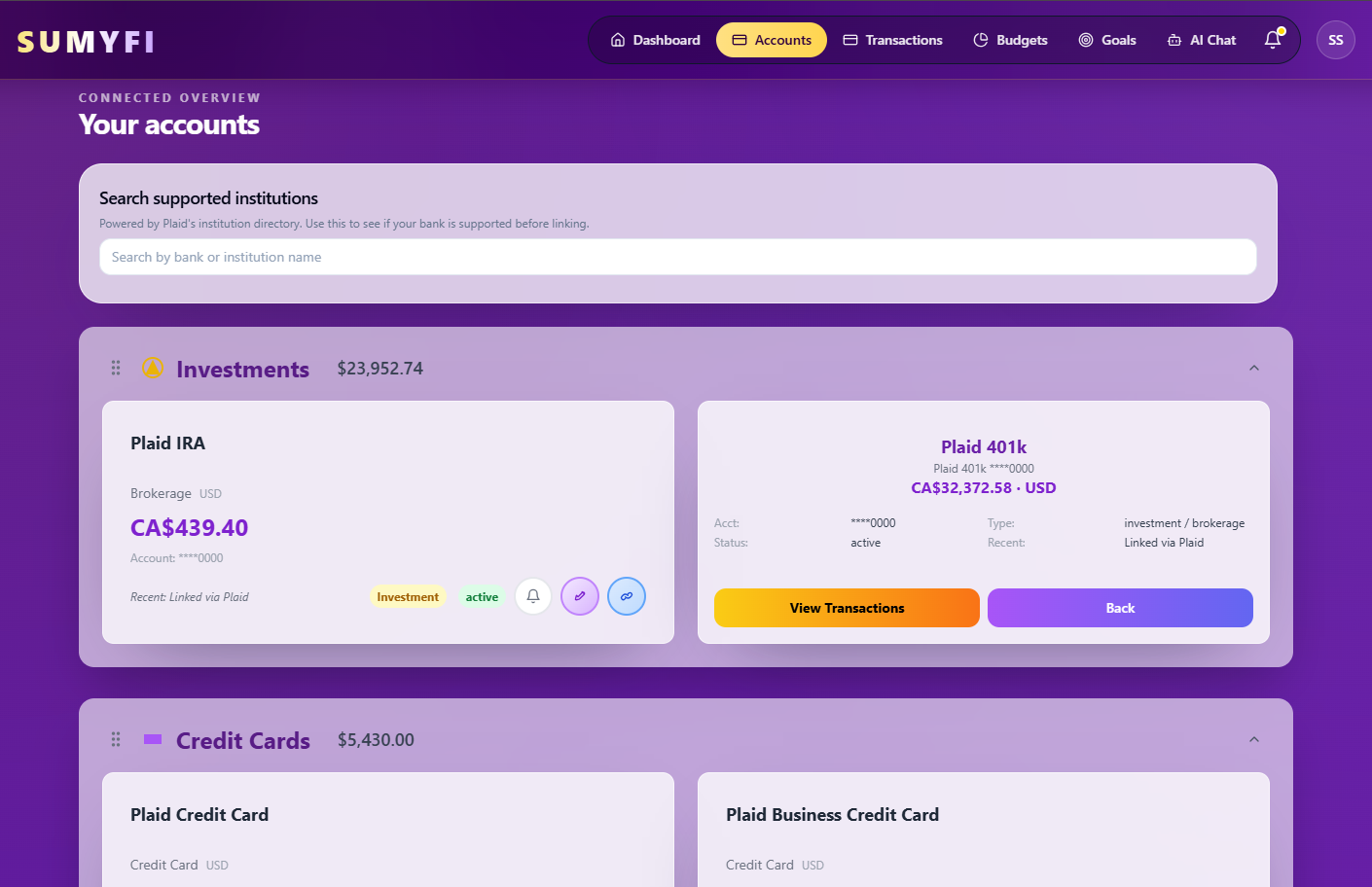
Automatic bank sync is part of Premium, which has a 7-day free trial. It runs through Plaid in read-only mode, covering Canadian and US institutions with coverage depending on your bank. The honest tradeoff is the same as every Mint replacement: free automatic sync like Mint had isn't on offer. If you're happy importing a CSV once a month, the free plan does the job.
A 30-day checklist after switching from Mint
Whichever app you landed on, these steps get you back to where Mint left you, and probably a little further.
- Week one: find your Mint export, download bank and card history, clean the files and import them oldest first.
- Week one: set up your 15 to 20 categories, including e-Transfer and registered-account categories.
- Week two: connect live accounts or set a monthly reminder to import fresh CSVs. Add anything that won't connect as a manual account with a balance.
- Week two: set budgets from the last three months of real spending in your imported data.
- Week three: review the recurring charges list and add the ones that were missed.
- Week four: record your net worth for the month and compare it against any figure you remember from Mint.
After that, the routine is the one Mint quietly trained you into: open the app once a week, check what's due and what's running hot, and fix any category that looks wrong while it's still fresh.